















If you run a hotel, guest house, resort, or even a vacation rental, one thing your website absolutely needs is a room availability calendar.
Guests don’t want to email you to ask if a room is free. They want to check availability instantly and book in a few clicks.
In this guide, I’ll show you exactly how to add a room availability calendar in WordPress step by step without writing a single line of code using Easy Hotel Plugin.
Why Your Website Needs a Room Availability Calendar
Before we jump into the steps, let’s quickly understand why this matters.
A room availability calendar:
- Reduces manual booking management
- Prevents double bookings
- Builds trust with guests
- Increases direct bookings
- Saves time for both you and your customers
Most importantly, it gives your visitors clarity. When people see available dates clearly, they’re much more likely to complete a booking.
The Best Way to Add a Room Availability Calendar in WordPress
There are two main ways to do this:
- Custom coding (complex and expensive)
- Using a booking plugin (easy and practical)
For most hotel owners, the smart option is using a WordPress booking plugin. It handles availability, bookings, pricing, and even payments — all in one place.
Now let’s walk through the full setup.
Step 1: Install a Hotel Booking Plugin
From your WordPress dashboard:
- Go to Plugins → Add New
- Search for a Easy hotel booking plugin
- Click Install
- Click Activate
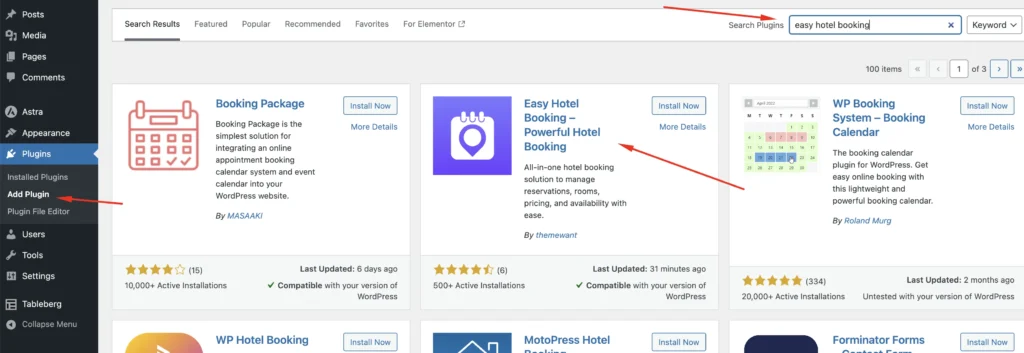
Once activated, the plugin will usually create a new menu section in your dashboard where you can manage rooms and availability.
Step 2: Create Your Rooms
Next, you need to add your rooms.
Go to the plugin’s room section and:
- Add room name (e.g., Deluxe Room, Family Suite)
- Add images
- Add description
- Set base price
- Set capacity (adults/children)
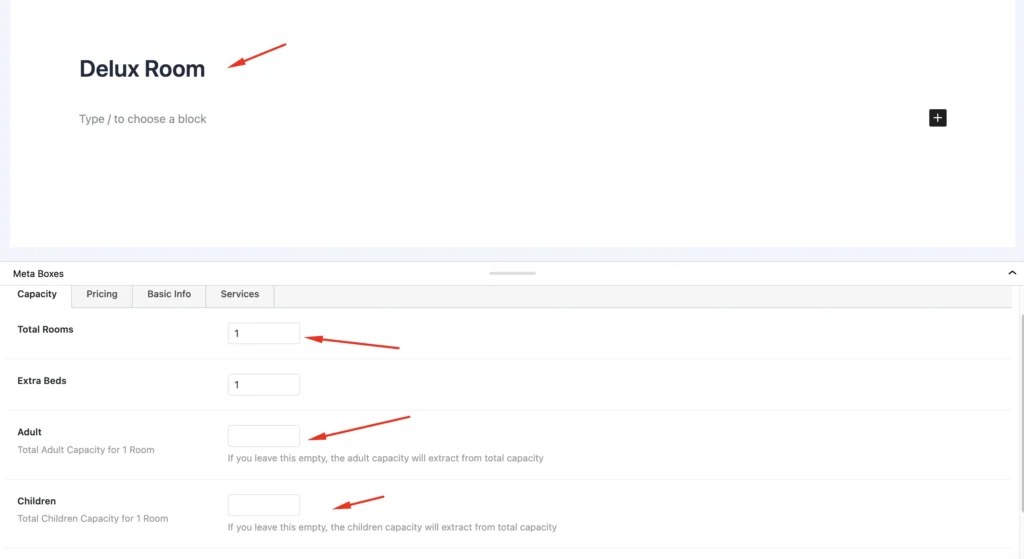
Make sure you fill in clear details. Guests rely on this information before booking.
Step 3: Configure Room Availability Settings
This is the most important part.
Inside the settings, you’ll typically find availability options where you can:
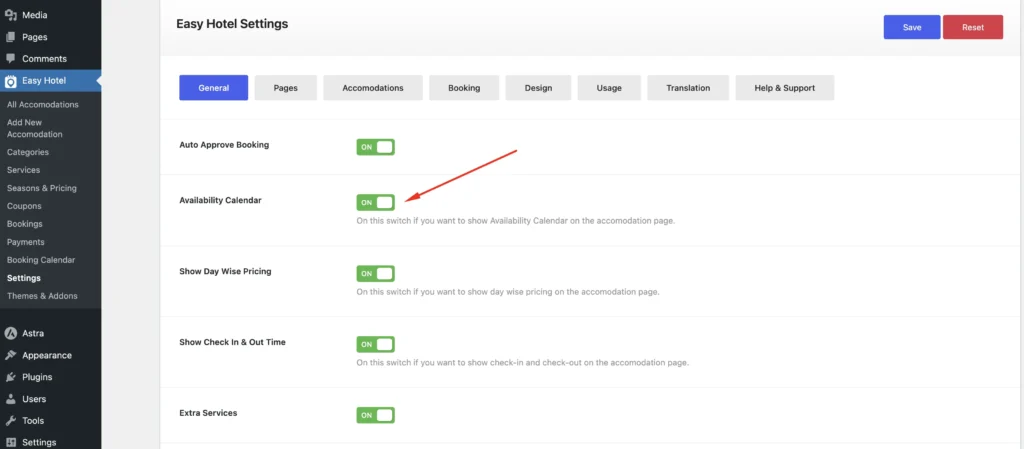
- Block specific dates
- Disable booking for certain days
You can manually block dates if a room is under maintenance or already reserved offline.
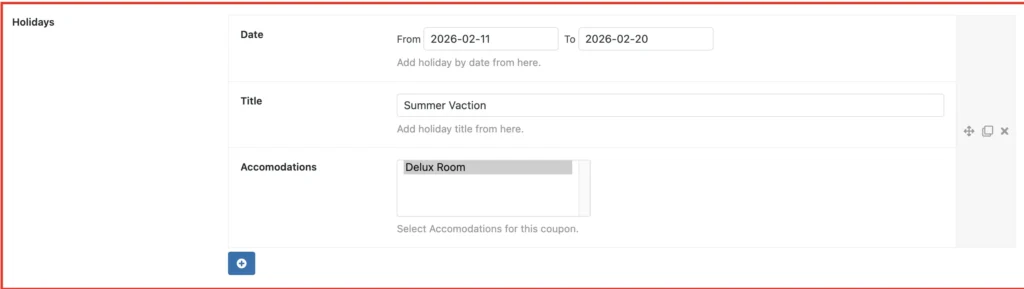
Some plugins also allow bulk availability management, which saves time if you manage multiple rooms.
Step 4: Display the Availability Calendar on Your Website
Now comes the visible part.
Most booking plugins allow you to:
- Insert a shortcode into any page
- Use a block in Gutenberg
- Use a widget in Elementor
Create a new page called something like:
Check Availability
or
Book Your Stay
Insert the booking calendar block or shortcode and publish the page.
That’s it — your room availability calendar is now live.
How the Calendar Works for Visitors
When guests visit your site:
- They select check-in and check-out dates
- The system checks room availability
- Only available rooms are shown
- They proceed to booking and payment
Everything happens automatically.
You no longer need to manually confirm availability unless you choose to.
Final Thoughts
Adding a room availability calendar in WordPress is not complicated — but it’s essential if you want to increase direct bookings and reduce manual work.
With the right booking plugin, you can:
- Manage room availability easily
- Prevent double bookings
- Accept online payments
- Offer a smooth experience to your guests
If you’re serious about growing your hotel business online, this should be one of the first features you set up on your website.