















Managing hotel room bookings manually can take a lot of time. You need to check availability, confirm reservations, manage prices, handle customer details, and update room status regularly.
For hotel owners, resort managers, guest house owners, and rental property businesses, this can become difficult very quickly.
The good news is that you do not need custom coding or an expensive booking system to manage your hotel reservations online.
With Easy Hotel Booking, you can create a complete room booking system directly inside your WordPress website. You can add rooms, set prices, manage availability, accept bookings, create coupons, and display booking forms using Elementor widgets or shortcodes.
In this guide, we will show you how to automate room bookings without coding using the free version of Easy Hotel Booking.
Why Automate Your Room Booking System?
A manual booking process can create many problems, such as double bookings, missed reservations, slow customer response, wrong pricing, and poor guest experience.
By automating your room booking system, you can:
- Show available rooms automatically
- Let customers select check-in and check-out dates
- Display room prices clearly
- Manage bookings from the WordPress dashboard
- Reduce manual communication
- Avoid booking mistakes
- Save time for your hotel team
- Improve the customer booking experience
Easy Hotel Booking helps you handle these tasks from one place without writing code.
What Is Easy Hotel Booking?
Easy Hotel Booking is a WordPress hotel booking plugin that helps you create and manage a complete room reservation system on your website.
It is designed for hotels, resorts, villas, apartments, guest houses, homestays, and rental businesses.
With Easy Hotel Booking, you can manage:
- Room types
- Room details
- Availability
- Booking calendar
- Pricing
- Seasonal pricing
- Coupons
- Amenities
- Room gallery
- Guest capacity
- Booking form
- Search form
- Booking list
- Payment/checkout options depending on your setup
The plugin is beginner-friendly and works well for users who want to build a hotel booking website without custom development.
Key Features of Easy Hotel Booking
Here are some useful features that make Easy Hotel Booking a strong solution for room booking automation:
1. Room Type Management
You can create different room types such as Deluxe Room, Family Suite, Single Room, Double Room, Apartment, Villa, or any custom accommodation type.
Each room can include title, description, image gallery, price, capacity, amenities, and booking details.
2. Availability Calendar
The availability calendar helps you manage which rooms are available or unavailable on specific dates.
This is useful for avoiding double bookings and controlling room availability during holidays, special events, or maintenance periods.
3. Guest Capacity
You can set the number of adults and children allowed for each room. This helps customers choose the right room based on their group size.
4. Seasonal Pricing
Hotels often need different prices for different seasons. With seasonal pricing, you can set special prices for weekends, holidays, peak seasons, or low-demand periods.
5. Coupons and Discounts
You can create coupon codes to offer special discounts to your guests. This is useful for seasonal campaigns, returning customers, email marketing, and holiday offers.
6. Elementor Widgets and Shortcodes
Easy Hotel Booking provides flexible options to display booking forms, room listings, room grids, search forms, and other booking elements on your website.
You can use Elementor widgets or shortcodes to place booking sections anywhere on your pages.
7. Booking Dashboard
All booking details can be managed from the WordPress dashboard. You can view booking information, customer details, selected room, dates, and booking status.
How to Automate Room Bookings Without Coding
Follow the steps below to set up your hotel booking system using Easy Hotel Booking.
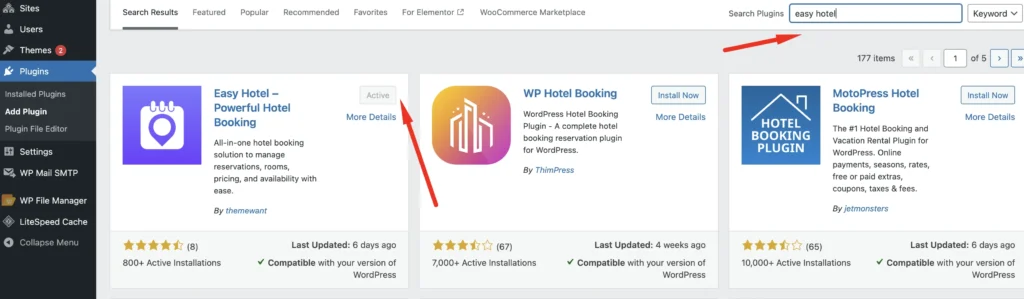
Step 1: Install and Activate Easy Hotel Booking
First, log in to your WordPress dashboard.
Go to:
Plugins → Add New
Search for Easy Hotel Booking. Then install and activate the plugin.
If you already have the plugin file, you can upload it manually by going to:
Plugins → Add New → Upload Plugin
After activating the plugin, you will see the Easy Hotel Booking menu in your WordPress dashboard.
Step 2: Configure the Basic Plugin Settings
After activation, go to the Easy Hotel Booking settings panel.
Here you can configure the basic booking options for your hotel website.
Depending on your website setup, you may configure:
- Booking page
- Checkout page
- Currency
- Date format
- Booking rules
- Email settings
- Payment or checkout settings
- General display settings
Set up these options based on your hotel business requirements.
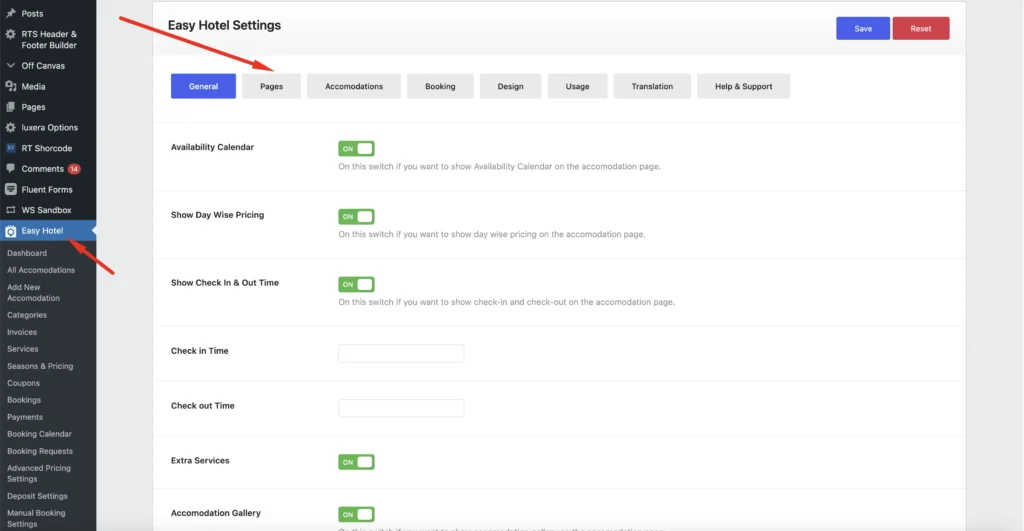
A properly configured settings page helps your booking system work smoothly from the beginning.
Step 3: Create Your First Room Type
Now it is time to add your hotel rooms.
Go to:
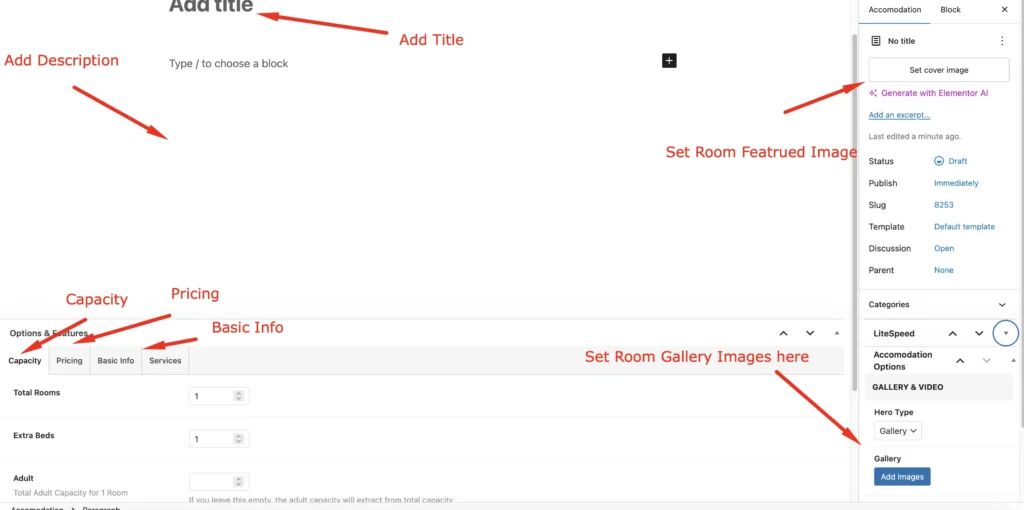
Easy Hotel → Add New Accomodation
Add the room title, such as:
Deluxe Double Room
Then add a detailed room description. You can include:
- Room size
- Bed type
- Price
- Facilities
- Guest capacity
- Special features
- Gallery
Example description:
Enjoy a comfortable stay in our Deluxe Double Room, designed for couples and small families. This room includes a king-size bed, air conditioning, free Wi-Fi, private bathroom, smart TV, and city view.
Step 4: Add Room Images and Gallery
Good images help customers make booking decisions faster.
Add a featured image for the room and upload multiple images to the room gallery.
You can include images of:
- Bed area
- Bathroom
- Balcony
- Room view
- Sitting area
- Amenities
- Hotel exterior
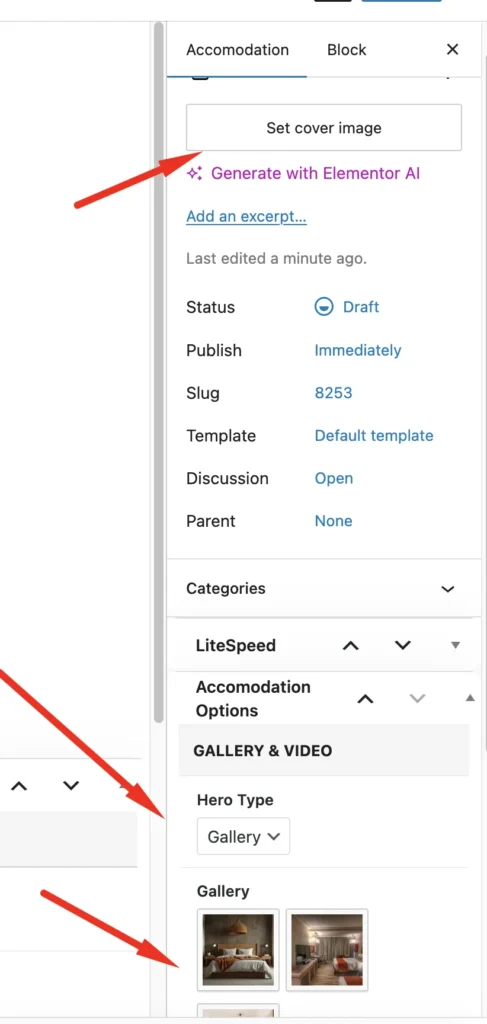
High-quality room images can improve trust and increase booking conversions.
Step 5: Set Room Price
Next, add the room price.
You can set the regular price for the room based on your hotel pricing model.
For example:
- Per night price
- Weekend price
- Seasonal price
- Special offer price
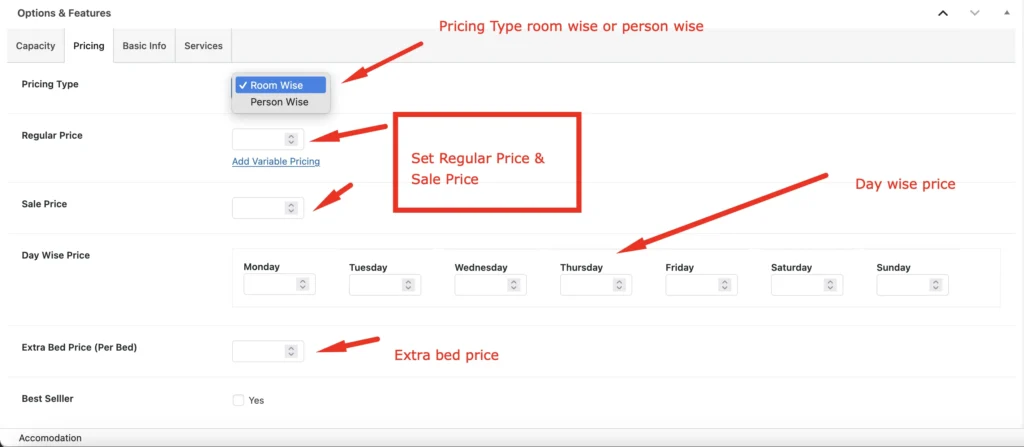
If your hotel has different pricing for different seasons, you can use the advanced pricing or seasonal pricing options.
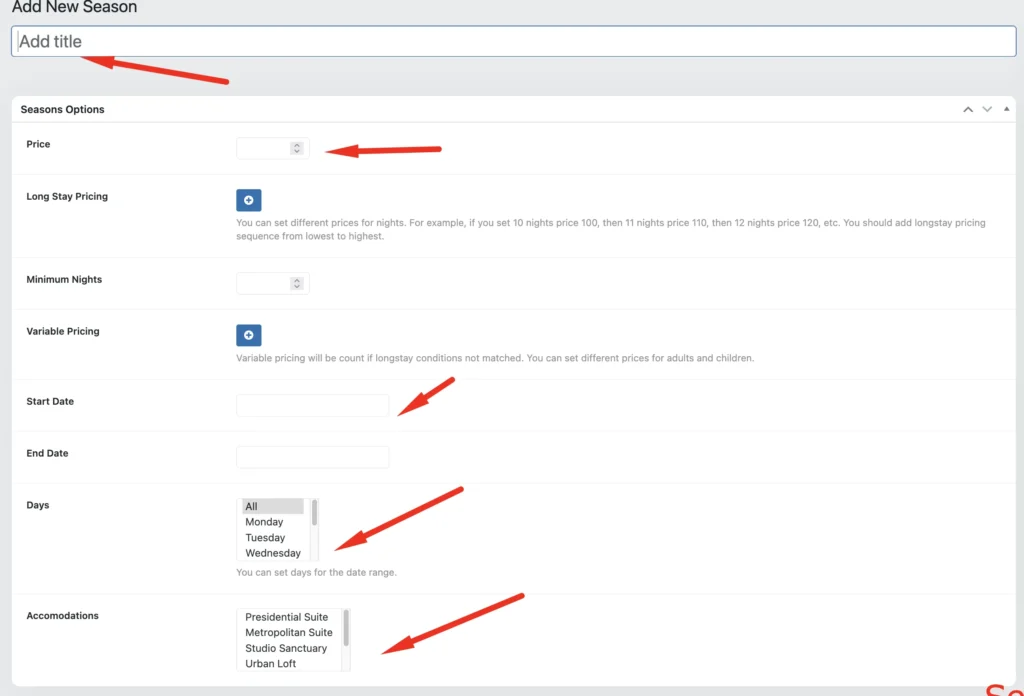
Clear pricing helps customers understand the cost before completing their booking.
Step 6: Set Guest Capacity
Now set the capacity for the room.
For example:
- Adults: 2
- Children: 1
- Total guests: 3
This helps customers filter and select rooms based on the number of people staying.
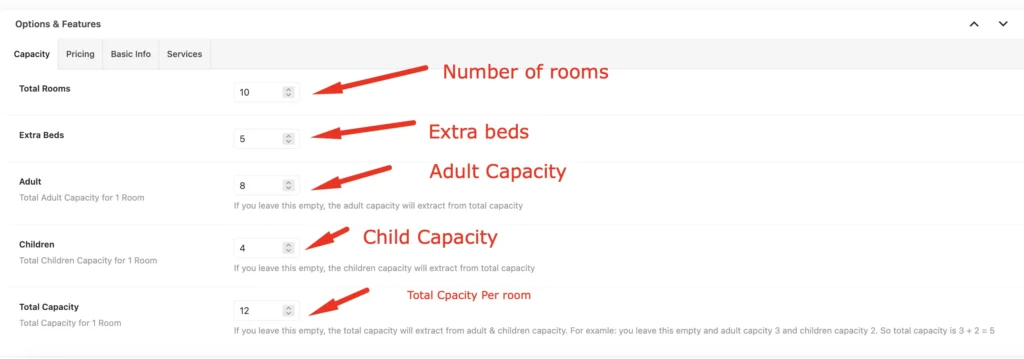
Guest capacity is important for hotels, resorts, villas, and apartments because not every room is suitable for every group size.
Step 7: Add Room Basic Info
Basic information are one of the most important parts of a hotel room listing.
You can add amenities/basic room information such as:
- Free Wi-Fi
- Size
- Bed etc
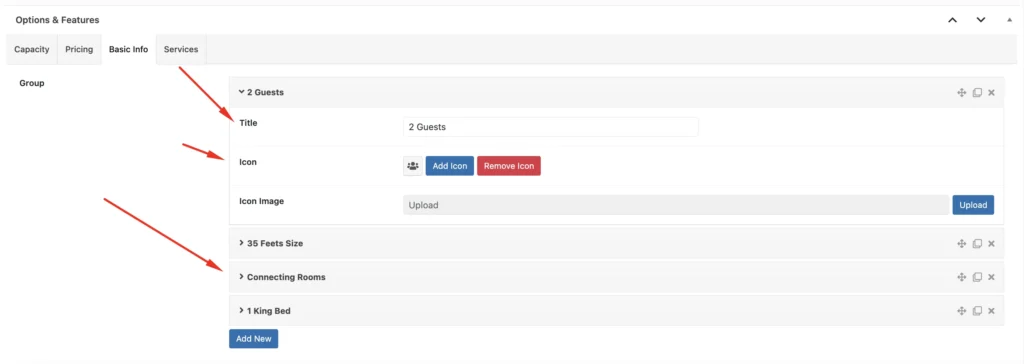
Adding clear amenities helps customers compare rooms and choose the best option.
Step 8: Manage Room Availability
To automate room booking properly, availability management is very important.
Go to the availability calendar and select the dates when the room is available or unavailable.
You can block dates for:
- Already booked rooms
- Maintenance
- Private events
- Holidays
- Seasonal closures
- Special reservations
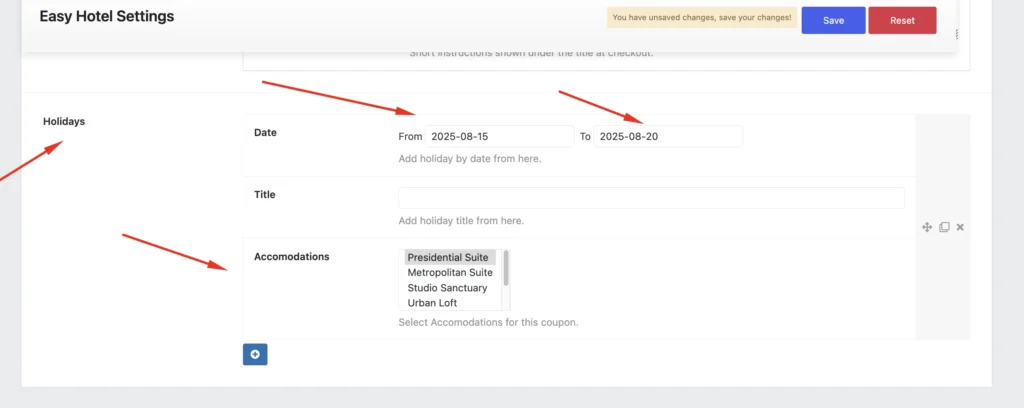
This helps prevent double booking and keeps your room status updated.
Step 9: Set Seasonal Pricing
Hotel prices often change based on the season. For example, your room price may increase during holidays, weekends, tourist seasons, or special events.
With seasonal pricing, you can create custom pricing rules for selected dates.
Example:
- Regular price: $80 per night
- Weekend price: $100 per night
- Holiday price: $120 per night
- Off-season price: $65 per night
Seasonal pricing helps you maximize revenue without manually changing prices every time.
Step 10: Create Coupons for Special Offers
Coupons are a great way to promote your hotel website.
You can create discount coupons for:
- New customers
- Returning guests
- Holiday campaigns
- Summer offers
- Early bird bookings
- Long-stay discounts
- Social media promotions
Example coupon:
SUMMER20 — Get 20% off on your next booking.
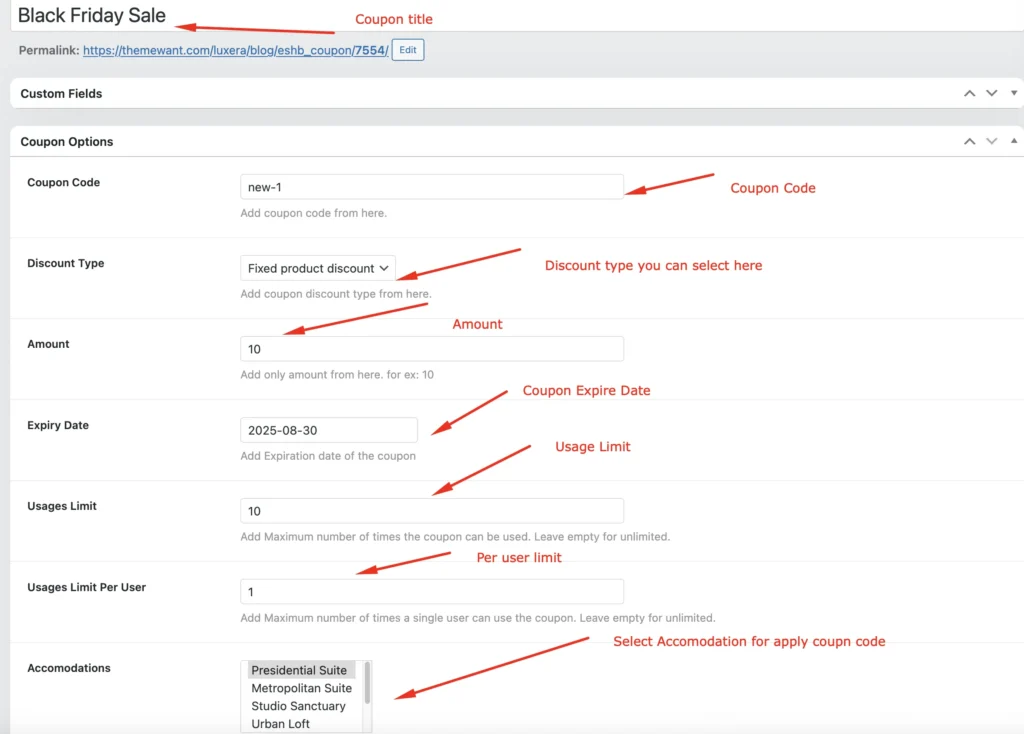
After creating coupons, you can share them on your website, email newsletter, Facebook page, or Google Ads campaigns.
Step 11: Display Room Listings on Your Website
After adding your rooms, you need to show them on your website.
Easy Hotel Booking allows you to display room listings using widgets or shortcodes.
You can create pages such as:
- Rooms
- Accommodation
- Book Now
- Hotel Booking
- Search Rooms
- Special Offers
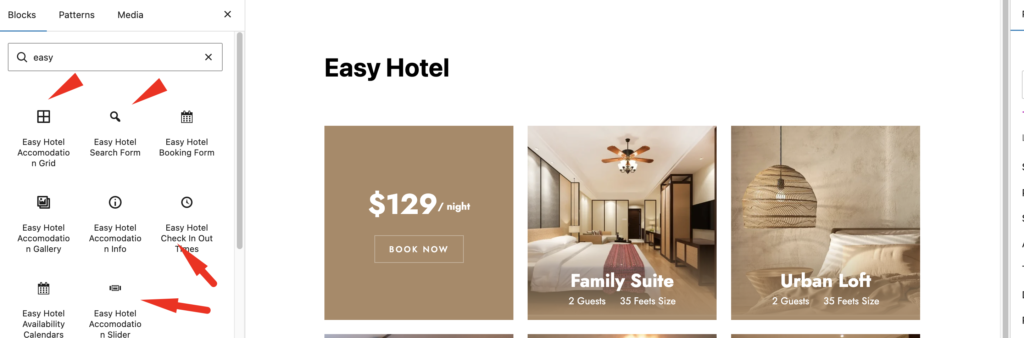
If you use Elementor, you can design the page visually and place Easy Hotel Booking widgets where needed.
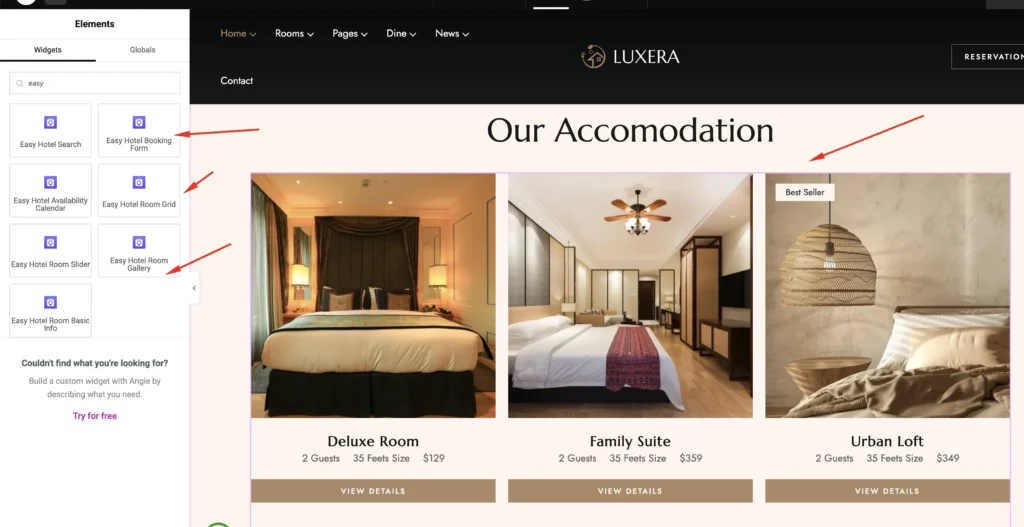
You can display:
- Room grid
- Room list
- Room slider
- Search form
- Booking form
- Room details
- Availability calendar
This makes it easy to build a professional booking page without coding.
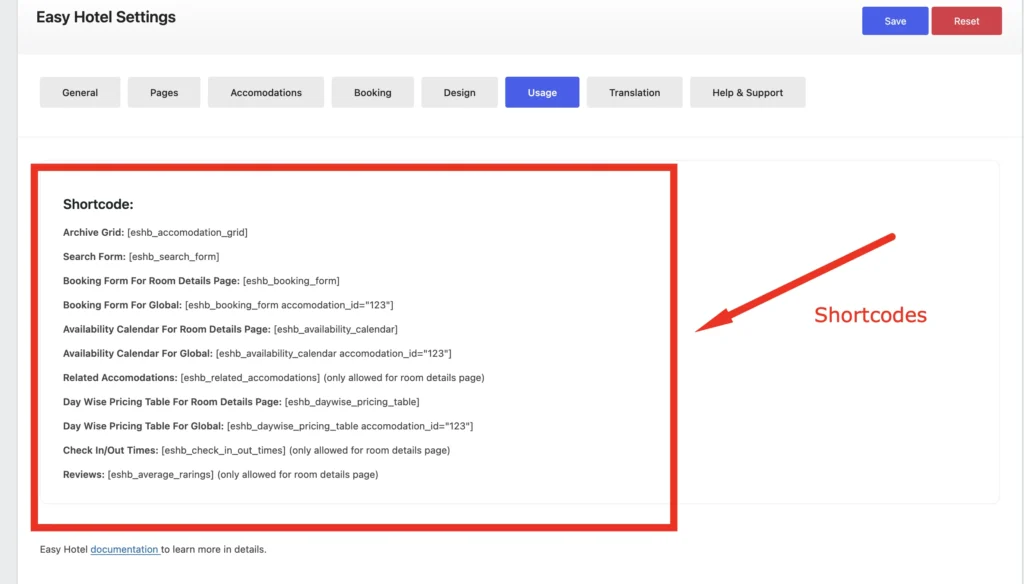
Also you can view room display etc using shortcode as well. Under Easy Hotel -> Settings -> Usage
If you use Gutenberg, you can design the page visually and place Easy Hotel Booking widgets where needed.
Step 12: Add a Room Search Form
A search form allows visitors to find available rooms based on their travel dates and guest number.
A typical search form may include:
- Check-in date
- Check-out date
- Adults
- Children
- Room type
- Search button
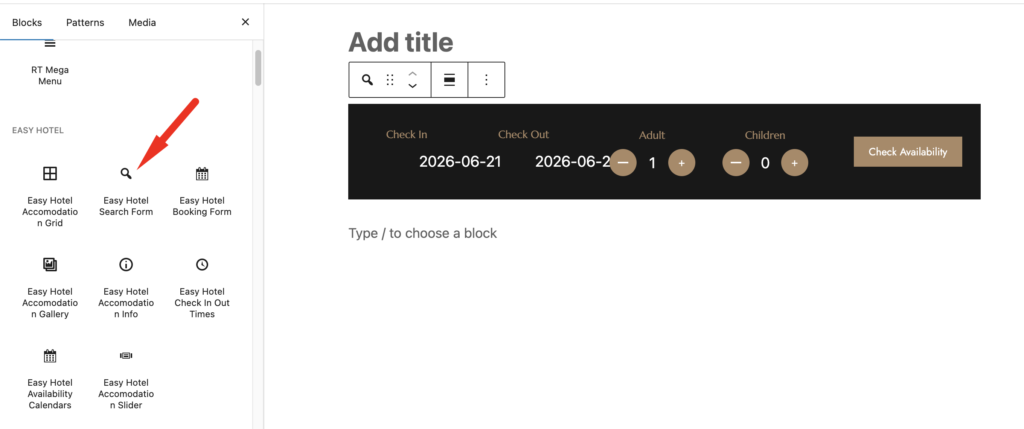
This improves the user experience because customers can quickly find rooms that match their needs.
Step 13: Add the Booking Form
The booking form is where customers submit their reservation request.
The form usually includes:
- Guest name
- Email address
- Phone number
- Check-in date
- Check-out date
- Number of guests
- Selected room
- Special request
- Booking confirmation
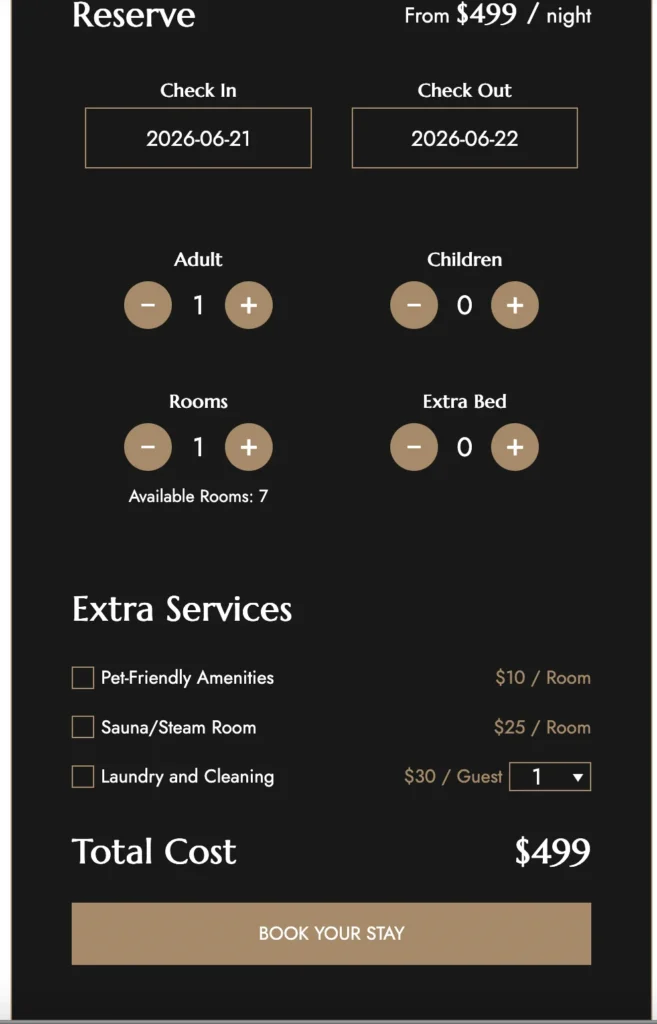
A simple booking form makes the reservation process easier and faster for your customers.
Step 14: Test the Booking Process
Before publishing your booking system, test the full booking process.
You should check:
- Room page design
- Search form
- Check-in and check-out date selection
- Guest capacity
- Room availability
- Price calculation
- Coupon discount
- Booking form submission
- Booking confirmation
- Admin booking list
- Email notification
Testing helps you find and fix issues before real customers use your booking system.
Step 15: Manage Bookings from the Dashboard
Once customers start booking rooms, you can manage their reservations from the WordPress dashboard.
You can check:
- Customer name
- Email address
- Phone number
- Room name
- Check-in date
- Check-out date
- Number of guests
- Booking status
- Payment/checkout status if applicable
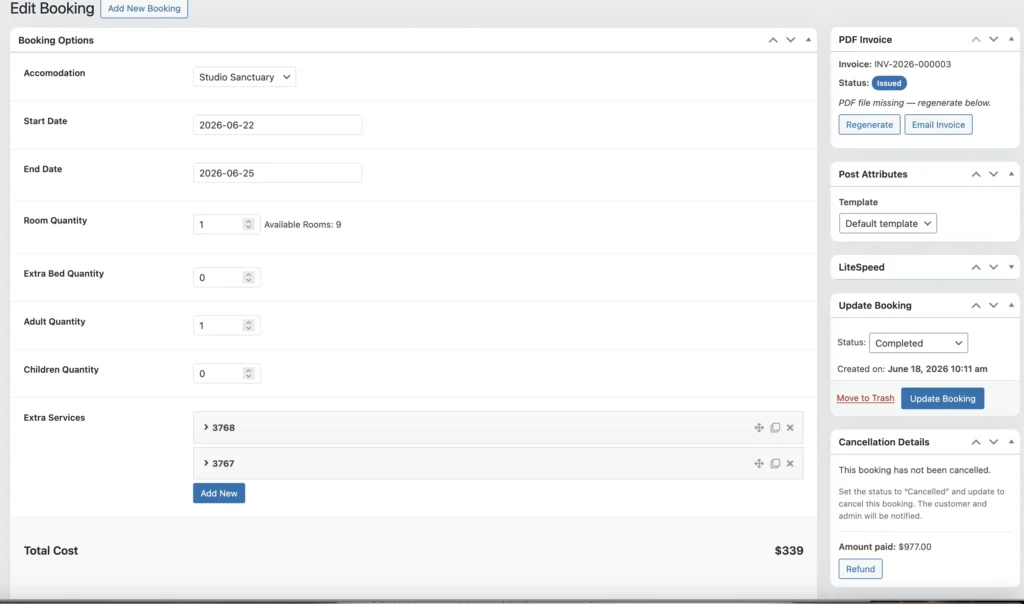
This gives you a central place to manage your hotel reservations.
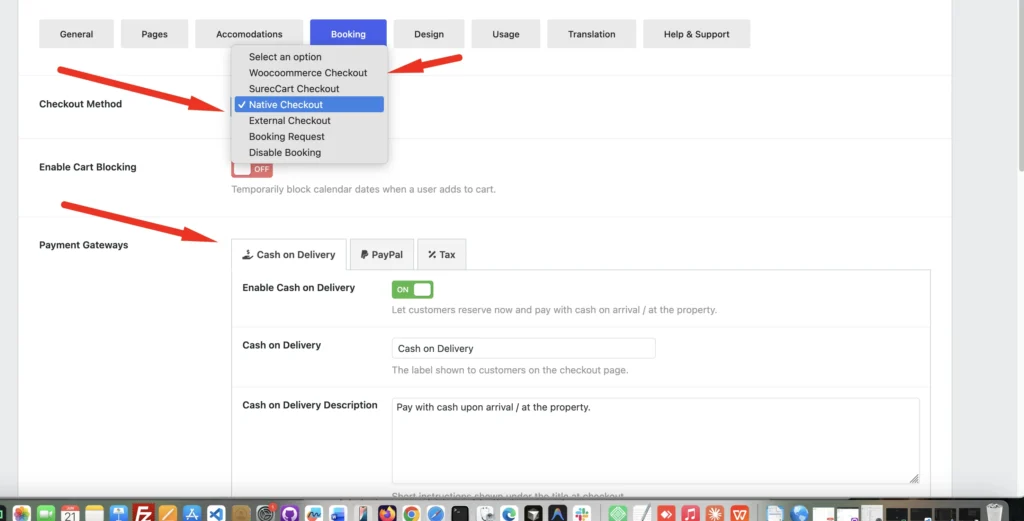
Step 16: Use Native Checkout or Payment Options
Depending on your Easy Hotel Booking setup, you can use available checkout options to handle the booking process.
For a simple booking system, you may allow customers to submit booking requests first.
For a more complete system, you can connect your checkout or payment process depending on the plugin options available on your website.
Easy Hotel Booking is useful because it allows hotel owners to move from manual booking to an automated online reservation flow.
Best Practices for Better Room Booking Automation
To get better results from your booking website, follow these tips:
Use Clear Room Titles
Use simple and clear room names like:
- Deluxe King Room
- Family Suite
- Standard Twin Room
- Sea View Villa
- Budget Single Room
Add High-Quality Images
Customers want to see what they are booking. Add real and clear images of your rooms.
Keep Pricing Updated
Make sure your regular price, seasonal price, and coupon rules are correct.
Update Availability Regularly
If you also take bookings offline, update your calendar to avoid double booking.
Add Detailed Amenities
Amenities help customers compare rooms easily.
Make the Booking Page Mobile-Friendly
Many customers book from mobile devices, so your room pages and booking forms should look good on mobile.
Use Offers and Coupons
Limited-time offers can increase direct bookings from your website.
Who Should Use Easy Hotel Booking?
Easy Hotel Booking is suitable for:
- Hotels
- Resorts
- Guest houses
- Villas
- Apartments
- Homestays
- Motels
- Vacation rentals
- Boutique hotels
- Service apartments
- Small property owners
If you want to accept room bookings directly from your WordPress website, Easy Hotel Booking can help you build the system without hiring a developer.
Benefits of Using Easy Hotel Booking
Here are the main benefits of using Easy Hotel Booking:
- No coding required
- Easy room management
- Flexible pricing options
- Availability calendar
- Guest capacity settings
- Coupon support
- Elementor support
- Shortcode support
- Booking management dashboard
- Better customer experience
- More direct bookings from your website
Instead of depending only on phone calls, messages, or third-party platforms, you can manage bookings directly from your own website.
Final Thoughts
Creating an automated room booking system does not have to be complicated.
With Easy Hotel Booking, you can build a complete hotel booking system inside WordPress without coding. You can add rooms, manage availability, set prices, create coupons, display booking forms, and manage reservations from your dashboard.
Whether you run a small guest house or a professional hotel website, Easy Hotel Booking gives you the tools to accept and manage online room bookings more easily.
If you want to save time, reduce manual work, and improve the booking experience for your guests, Easy Hotel Booking is a great solution for your WordPress website.
