
















If you’ve ever run a WooCommerce store that sells to wholesale buyers, restaurants, or anyone ordering more than one or two items at a time, you’ve probably watched a customer struggle through this exact routine: open a product, pick a quantity, click add to cart, go back, find the next product, repeat. Fifteen times.
It’s not broken, exactly. It’s just built for a different kind of shopping.
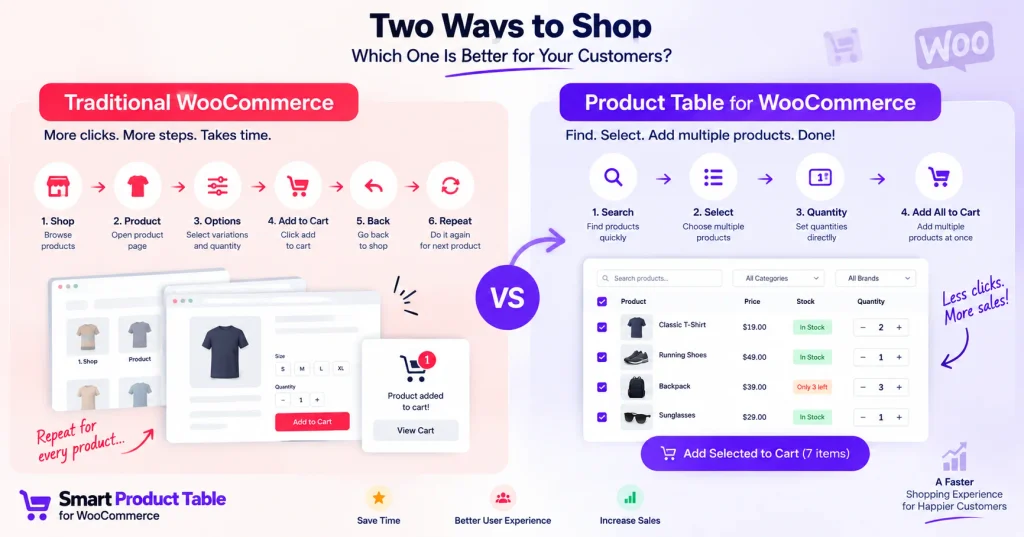
The default WooCommerce flow — Shop → Product → Select Options → Add to Cart → Back to Shop — makes sense when someone’s deciding whether to buy a single considered item. Photos, descriptions, reviews, all of that earns its place. But when a customer already knows what they want and just needs to get 20 SKUs into their cart, that same flow turns into busywork.
Who actually needs this
Not every store does. A boutique selling a dozen curated products is probably fine with the standard grid — customers there are browsing, not filling out an order sheet.
But a few kinds of stores run into this problem constantly:
- Wholesale and B2B sellers, where a single order might touch dozens of SKUs
- Grocery and food stores, where people add far more items per visit than a typical retail shopper
- Restaurants taking online orders, where a menu-style table beats clicking in and out of individual dishes
- Parts and industrial suppliers, especially catalogs with hundreds or thousands of products searched by SKU
- Office supply shops, where orders tend to be a grab-bag of small items
- Repeat customers who already know what they buy every month and just want to reorder fast
If that sounds like your store, the fix usually isn’t a redesign of the whole shop — it’s giving these specific customers a faster path alongside the normal one.
The basic idea: a product table
The most practical way to solve this without writing custom code is a product table — basically a spreadsheet-like view of your catalog where customers can search, set quantities, and add several products to the cart in one pass, instead of bouncing between product pages.
Here’s roughly how that plays out in practice.
Pick your columns carefully. You don’t need every product attribute on screen. A wholesale catalog might only need SKU, name, price, stock, and quantity. A restaurant table probably wants an image and short description instead of a SKU column. Whatever you choose, resist the urge to cram in every field just because it’s available — a table with twelve columns is harder to scan than one with five, especially on a phone.
Make search and filtering easy to find. This matters more than people expect once a catalog gets past a couple hundred products. Nobody wants to scroll through 2,000 rows to find one part number. Filtering by category, SKU, price, or attribute turns a wall of products into something a customer can actually use.
Let people type quantities instead of clicking repeatedly. Something like “Office Chair — Qty 4” sitting right next to the product, rather than four separate add-to-cart clicks, is the whole point of this exercise. It’s a small thing, but it’s the difference between an order form and a shopping cart.
Handle variations without forcing a detour. Products with sizes or colors — a T-shirt in small/medium/large, black/white/blue — normally send customers to a separate product page just to pick a variant. A well-built table lets them choose “Black T-Shirt / Medium — 10” right in the row, which matters a lot if someone’s ordering multiple variations of the same item.
Keep the cart visible. After a customer adds a handful of products at once, it should be obvious the cart actually updated. A visible count, or an easy link to review the cart, avoids the “did that work?” moment.
Don’t get rid of your product pages. Some customers still want the full picture — big photos, specs, reviews — before they buy. A quick-order table is meant to sit alongside your regular shop, not replace it. Plenty of stores end up running both: the normal shop for browsing, and a separate “Quick Order” or “Wholesale” page built around a table for people who already know what they want.
Table vs. traditional shop — different jobs, not competitors
| Traditional Shop | Product Table |
|---|---|
| Better for browsing and discovery | Better for fast, known-item ordering |
| Big product images | Compact, scannable info |
| One product per page | Many products on one screen |
| Suits smaller catalogs | Scales better to large catalogs |
Neither one is “better” in the abstract — they’re solving different problems for different shoppers.
Do you need a plugin for this?
You can build it yourself with PHP, JavaScript, AJAX, and WooCommerce’s hooks — and for a store with genuinely unusual requirements, that might be the right call. But it’s also something you’ll be maintaining forever, patching every time WordPress, WooCommerce, or your theme updates in a way that breaks your custom code.
For most stores, it’s just easier to use an existing product-table plugin and spend your time on the parts of the business that are actually unique to you.
We built Smart Product Table for WooCommerce for exactly this — a searchable, filterable table with quantity fields and bulk add-to-cart, so you can set up a wholesale page, a fast-reorder page, or just a leaner alternative to the standard shop without writing any of it from scratch.
👉 Explore Smart Product Table for WooCommerce
The real question to ask
Forget the feature list for a second and ask yourself one thing: do your customers regularly buy more than one product per visit, and do they already know what they want when they land on your site?
If yes, a product table is probably worth setting up. If most of your customers are browsing one considered purchase at a time, your existing shop page is doing its job fine — leave it alone.
The goal was never to shave off clicks for the sake of it. It’s to stop making people work for an order they’d already decided to place.
Frequently Asked Questions
Can customers add multiple products to the cart at once in WooCommerce?
Yes. While the default WooCommerce shopping flow generally encourages customers to add products individually, you can provide a bulk ordering interface that lets shoppers select multiple products, set quantities, and add them to the cart together.
How do I add multiple products to the WooCommerce cart without opening each product page?
One of the easiest ways is to use a WooCommerce product table. It displays multiple products on a single page so customers can search for items, choose quantities or variations, and add products without repeatedly opening individual product pages.
What is WooCommerce bulk add to cart?
WooCommerce bulk add to cart allows shoppers to select and add several different products to their cart in one ordering process. It’s particularly useful for wholesale, B2B, restaurant, grocery, spare-parts, and other stores where customers frequently purchase multiple items.
Can customers choose quantities before adding multiple products?
Yes. A product table with quantity controls can allow customers to enter the quantity they need for each product before adding their selections to the cart. This can make large or repeat orders much faster to prepare.
Can I add multiple variable products to the cart at once?
Yes, provided your product table or bulk-order solution supports WooCommerce variable products. Customers can select options such as size, color, or other variations before adding the selected products to their cart.
Can I create a WooCommerce quick order form?
Yes. A searchable product table can work as a WooCommerce quick order form by displaying products, prices, quantities, variations, and purchasing controls in one place. This is especially useful for customers who already know what they want to order.
Is a product table suitable for wholesale WooCommerce stores?
Yes. Wholesale and B2B stores are among the most common use cases for product tables because buyers often order multiple SKUs and larger quantities. A table layout can make searching, comparing, selecting quantities, and placing bulk orders considerably easier.
Should I replace my normal WooCommerce shop with a product table?
Not necessarily. You can keep your regular WooCommerce shop for customers who prefer browsing and create a separate Quick Order, Wholesale, or Bulk Order page for customers who want a faster purchasing experience.
Do I need coding knowledge to create a WooCommerce product table?
Not if you use a dedicated product table plugin. A plugin such as Smart Product Table for WooCommerce can provide product search, filtering, quantity selection, and bulk add-to-cart functionality without requiring you to build the ordering system from scratch.
Will adding multiple products to cart work on mobile devices?
It can, but the product table needs to be responsive. Since tables can contain several columns, it’s important to test the ordering experience on phones and tablets and make sure product selection, quantity controls, variations, and add-to-cart actions remain easy to use.
